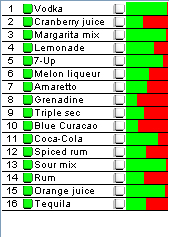
Ingredients
The ingredient list shows what ingredients are currently in the Lazydrinker as well as how they are filtered and what level each ingredient is at. To add and remove ingredients as well as edit and filter them you may double click on this list or hit ctrl + I on your keyboard. Doing so will bring up the Ingredient window.
Ingredient Window
Inserting an Ingredient
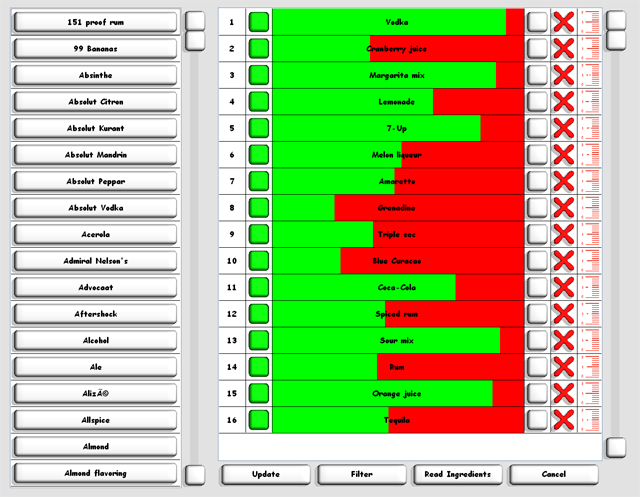
Before the Lazydrinker can make drinks, it must know what it has as far as ingredients. To do so, select an ingredient from the list on the left and click on the number in the list on the right that corresponds to that ingredients position in the machine. For instance, if I have vodka in the fist position in my machine, I would select vodka from the list on the left and click on the number 1 in the list on the right. If the slot is empty, vodka will fill that row. If the slot is not empty, you will be prompted to confirm you want vodka to replace whatever's in there. The list on the right is how you set up your ingredients.
Filtering, Levels, and Editing Ingredients
 |
As previously stated, the first column represents the position the ingredient sits in the lazydrinker. The first ingredient is connected to the furthest left connection. The 16th ingredient is furthest right. |
  |
The second column is used to filter the drink list. It defaults to being on and is used to take ingredients out of the drink list. For instance, all the ingredients default to being in the filter process (green). If I were to press the green button next to vodka, it would turn white and filtering would take out all drinks that have vodka in the recipe. pressing the button again would change it back to green and once again allow drinks with vodka to be displayed. |
 |
The green and red in the third column represents the level of fluid left in the bottle. The level is based on 64 ounces so all green would mean there are 64 ounces left in the bottle. You may click and drag in this cell to adjust the value. The fully assembled Lazydrinker cannot hold 16 two liter bottles so smaller bottles must be used. In this case a full bottle may not show all green, but only what is left in the bottle. If one liter bottles were used, half green and half red would indicate a full bottle. |
 |
The third from the right column of button is also used to filter the drink list. By clicking on this button, you're telling the software that this ingredient must be present in all drinks that are displayed. So if this button is selected on the vodka and 7up rows, only drinks with both vodka and 7up will display in the drink list. If the green button on this row is deselected then the yellow button will be as well. You can't say an ingredient is both in and not in the filter. |
 |
Select the large red X to remove and ingredient from the list. This will remove the ingredient and leave the row blank. |
 |
To edit an ingredient, select this button next to it. You will also select this button to add a new ingredient. When adding a new ingredient, select a similar one and click this edit button. Much like the add drink screen the current ingredient values will be used by default. Simply adjust them, give the ingredient a name and hit 'add new'. This is also how you calibrate your ingredients. all ingredients pour slightly differently and it's important to calibrate in order to be as accurate as possible. |
When just filtering your list, hit the 'Filter' button and you will be taken back to the main window and the drink list will be updated. If you add or edit ingredients in any way you must hit the 'Update' button. Update actually writes information to the Lazydrinker board so it takes a little time. By writing ingredients to the board, it allows you to read that info from the board to fill in your ingredient list. That way if you edit your list in demo mode or hook up someone elses' Lazydrinker, you can press the 'Read' button and it will fill in the ingredients. One note....if your connecting someone elses' Lazydrinker, the ingredients may be different in the two different databases depending on whether or not you've added or deleted ingredients. It's important to check and make sure the correct ingredients have been put in.
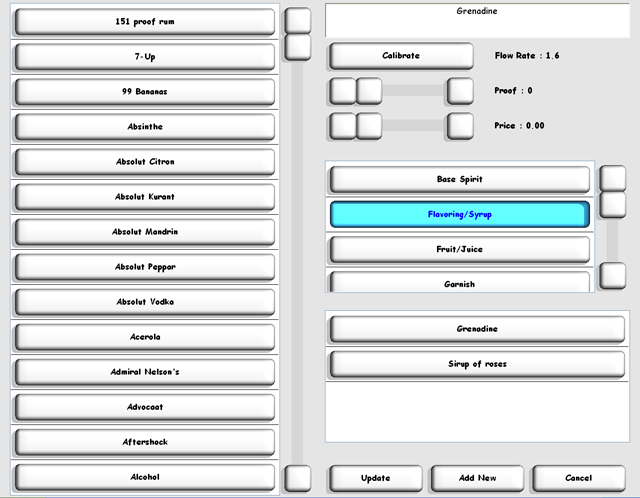
To add or edit an ingredient, you must specify a name, proof, category, and substitutes. What substitutes does is allow one ingredient to be substituted for multiple ingredients. For instance, if I had coca cola as an ingredient without substitutes, my drink list would not show drinks with ingredients like 'coke' or 'cola'. If I specify 'coke' and 'cola' as substitutes they would show up in the drink list. Another good use for substitutes is if you have multiple types of whiskey for instance. Let's say you have both Jack Daniels and Black Velvet in your Lazydrinker. If you specify 'whiskey' and 'whisky' as substitutes for both jack Daniels and Black Velvet they both could be substituted for 'whiskey' or 'whiskey' in a recipe. As a matter of fact, in this example if a recipe had 'whisky' in it, the program would ask you which whisky (Jack or BV) you want to use.
Price is the price per ounce of the ingredient. This value is use to calculate the cost of an entire drink.
Calibrating Ingredients
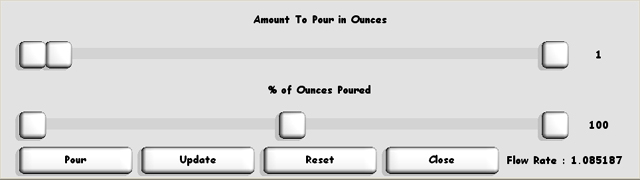
To calibrate an ingredient press the 'calibrate' button. What calibrating does is increase or decrease the time used to pour an ounce of a particular ingredient. Grenadine is much thicker and takes longer to pour than vodka. To calibrate, select the amount to be poured. Typically this is 1 ounce, but may be more. Click pour and measure how much it actually pours and drag the lower slider to that amount. If I ask it to pour 1 ounce and it pours half an ounce, I would set the lower slider to 50%. I would then try to pour it again and readjust the lower slider. When you do get 1 ounce to pour, select the update button to save it. Remember to also hit update on the main ingredient screen or it won't be saved.
| <<<Make that Drink | Categories >>> |
| Home | Support | Screenshots | Software | Movies | Purchase |