
Make that Drink
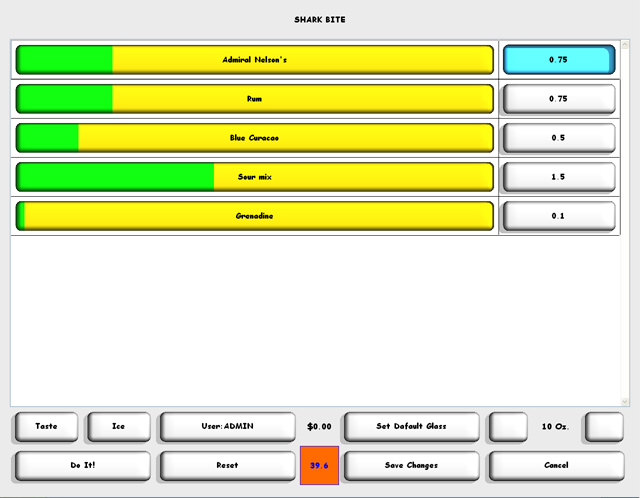
Pressing the 'Make That Bad Boy!' button brings up the make screen. Here you can adjust glass size, ingredient values, ice / no ice, or have a taste.
Drink Adjustment
Changing ingredient values can be done by clicking on each ingredients green and yellow value bar and dragging. Using the keyboard arrow key may be used as well. At anytime you may select the 'Reset' button to return to the default values.
Ice / No Ice
The 'Ice' button is a toggle button that toggles between ice and no ice. What this basically does is cut the amounts in half to allow for ice. So for a 10 Oz. glass, if 'Ice' is selected only 5 Oz. will be poured. If 'No Ice' is selected, all 10 Oz. would be poured.
Glass Size
The glass size is represented on the lower right and can be adjusted by pressing the buttons on either side of the value. Changing the glass size is a one time event. The next time you make a drink, the default glass size will be displayed. Pressing 'Set Default Glass Size' will set the current value to the default glass size for the current user. That size will then be used initially for every drink in the future for that particular user.
Taste
The taste button will pour one ounce regardless of ice or glass size. This button is a good way to see if like the taste of a drink without pouring the entire glass. It also works well to perfect a drinks recipe. Taste also has an effect on a users Drink Credit. The current price of the drink scaled down to one ounce will be subtracted from the current users drink credit.
Save Changes
This will save any changes to the current users settings. Only that user will have these settings when the drink is made again. All users can have different settings for the same drink.
Proof Box

The Colored box represents the drinks current estimated proof. It will dynamically change as you adjust the drink. If this value is higher than the current users' Proof Limit, he/she will not be able to make the drink.
Price $0.00
The Price is the current price of the drink. It also dynamically changes as you adjust the drink. When a drink is made, this amount is subtracted from the current users Drink Credit. If this value is higher than the current users' Drink Credit, the drink cannot be made.
Do It!
When you finally have the drink to where you want it, pressing the 'Do It!' button will tell the lazydrinker to make it. base on the current glass size and drink values, the Lazydrinker will begin pouring your drink. When finished, the make window will close and you will taken back to the main screen. During the making process, you may press the 'esc' key on your keyboard at anytime to abort the process.
| <<<Recipe | Ingredients >>> |
| Home | Support | Screenshots | Software | Movies | Purchase |