
Drink List
Sorting
There are four ways to sort your drink list....by name, proof, rating, or number of ingredients. Click on each heading to select it, or use the arrow keys on your keyboard to cycle through each from left to right.
 |
Sorting by name simply sorts alphabetically by drink name with numbers first, then A's, B's, etc. Numbers are always on top, Z's are always on the bottom. | |
| Proof |
 |
Sorting by proof put the weakest drinks at the top and the strongest drinks at the bottom. Proof also has a color code. A drink with no alcohol is displayed as white. A small amount of alcohol will be green then yellow, orange, red and finally black for drinks that are very high in alcohol content. |
| Rating |
 |
The rating system use in the lazydrinker software has been taken from various ratings of drinks on a lot of different websites across the internet. They are rated on a scale of 0 (worst) to 10 (best) and when sorted, the highest rated drinks will be at the top. This rating will change based on ratings given to drinks using the 'Rate Drink' button. |
| # of Ingredients |
 |
This will sort drinks based on how many ingredients are in the recipe. Drinks with the most ingredients will be shown at the bottom of the list. |
Add / Delete / Edit

With these buttons you can add and remove drinks from the database. Delete works as you would expect, removing the current drink from the database. Add and Edit actually bring up the same add screen. However if you select edit the add screen will appear with all it's fields filled in with the current drinks information.
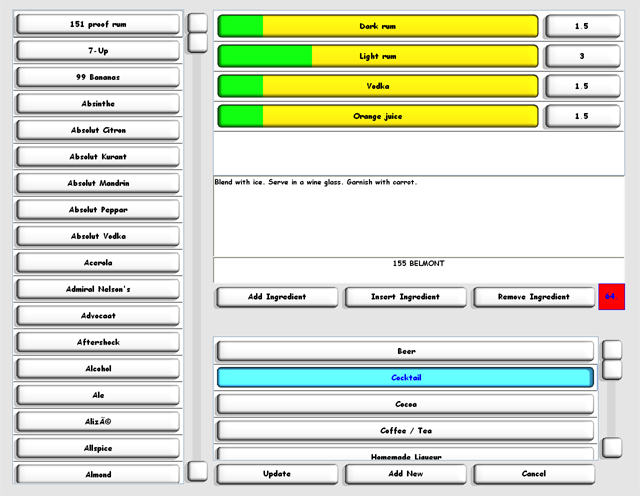
In the screen above, the edit button was
pressed while the drink '155 Belmont' was selected. The ingredients,
description, and category from '155 Belmont' have been filled in. At this point,
values may be changed and ingredients may be added or removed. As the drink is
edited or created, the proof box
 shows what the current
proof of the drink is. If the add button had been pressed, these fields would
have been empty and you would have to fill them in yourself.
shows what the current
proof of the drink is. If the add button had been pressed, these fields would
have been empty and you would have to fill them in yourself.
'Add Ingredient' adds the ingredient selected in the leftmost list to the bottom of the recipe list. 'Insert Ingredient" inserts the leftmost selected ingredient to the spot one above the currently selected ingredient in the recipe list. To adjust the recipes ingredient values you may click and drag in the yellow area of each ingredient. The arrows on the keyboard may also be used to travel up and down the recipe list, as well as adjusting the level from left to right.
When the drink is ready to be saved you may either select 'Update' or 'Add New'. 'Update' overwrites the current drink in the database whereas 'Add New" creates a new drink. If you select 'Add New' and the drink has the same name as one already in the database, you will be prompted to change the name.
| <<<Users | Recipe >>> |
| Home | Support | Screenshots | Software | Movies | Purchase |